Player setup guide
Install it, point it at DK LFL, and play. The plugin submits your bingo drops, posts your rare drops and deaths to Discord, and — if you run OBS — saves and posts clips of the moments worth re-watching.
Install the plugin
In RuneLite: Configuration (the wrench) → Plugin Hub → search Anvil → Install. The publisher is AhmedFathy2001.
One plugin serves every clan — you point it at this site in the next step, so there is nothing clan-specific to download. Once installed, open Configuration → Anvil to reach the settings panel shown throughout this guide.
Connect to this site
Only the Setup section matters to get going. Everything else has sensible defaults.
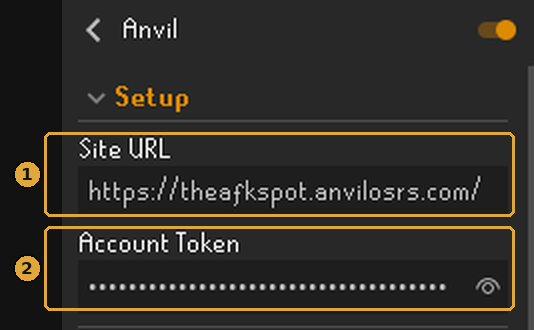
- 1Site URL — for DK LFL that’s
https://lfl.anvilosrs.com. This ships empty, so you must fill it in. No trailing slash needed, andhttps://is added if you leave it off. - 2Account Token — your personal key to this site. Either let the plugin fill it in for you (below), or paste it yourself. Treat it like a password.
The easy way: sign in from the plugin
With the Site URL set and the token still empty, the Anvil side panel shows a Sign in with Discord button. Click it and the plugin walks you through it — no copying anything.
- The panel shows a code and opens your browser on this site.
- Check the code on the page matches the one in RuneLite, then click Approve.
- The panel says Signed in and fills the Account Token in for you.
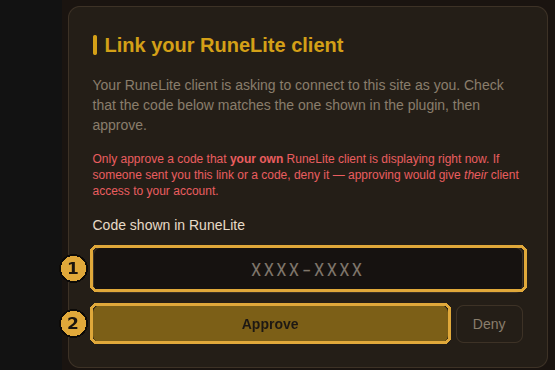
- 1The code — it must match what the plugin is showing you right now.
- 2Approve — only ever approve a code your own client is displaying. If someone sent you a link or a code, deny it — approving would hand them your account.
Approving happens here, on https://lfl.anvilosrs.com. If you’re not signed into the site yet, the login step routes through Anvil’s shared Discord login on anvilosrs.com to confirm your Discord identity, then lands you straight back here — that’s the same login you get from the Login button on this site, not part of the plugin flow.
The plugin itself only ever talks to https://lfl.anvilosrs.com: it refuses to open any sign-in page that isn’t on the Site URL you typed.
Not to be confused with Connect clans in the side panel — that’s the separate, optional button that links you to other Anvil clans, and it only appears once you’re already signed in here.
If the browser doesn’t open on its own, the panel prints the address and the code so you can open it manually. Codes expire after ten minutes — just press the button again.
The manual way: copy your token
Log in with Discord and open Profile, then scroll to the RuneLite plugin card.
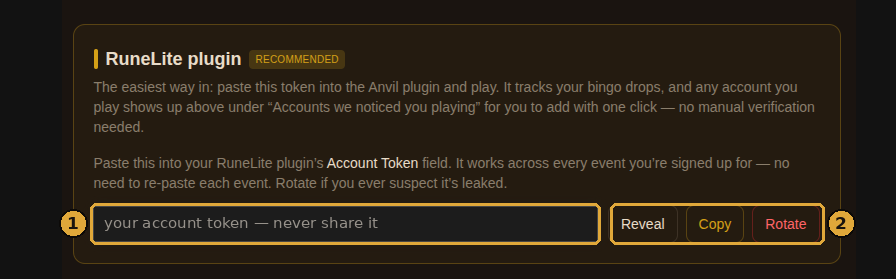
- 1Your token — hidden until you press Reveal. It's blanked out in this screenshot on purpose; never post yours in Discord.
- 2Copy / Rotate — copy it into the plugin’s Account Token field. Rotate issues a new one and kills the old — use it if you ever think your token leaked.
One token covers every event you’re signed up for here — you never re-paste it per bingo.
Link your accounts — just play
There’s no link code to type. Once the token is in, whichever account you log into gets matched to your profile automatically.
The plugin sends your in-game name plus a stable account fingerprint with every request, and the site matches on the fingerprint first — so your links survive a name change. Log into an alt once and it shows up on your Profile under Accounts we noticed you playing with a one-click Add.
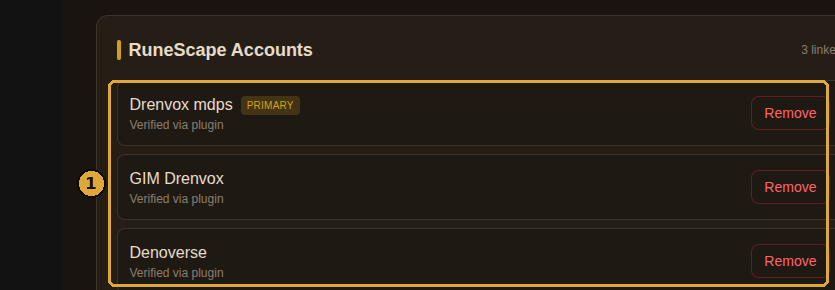
- 1Your linked accounts — anything marked “Verified via plugin” got there just by being played. Add as many alts as you like; one is your primary.
Can’t run the plugin?
On mobile or the official client, link on the website instead — Profile shows both options:
- Verify by XP — enter your RSN, the site picks a random skill, gain 1,000 XP in it within 30 minutes.
- Manual review — for hidden Hiscores or fresh alts: submit your RSN with a note and a moderator approves it.
Event sign-ups need at least one verified account, so get this done before you sign up.
Check it's working
Log in and read your chat box. The plugin greets you when it’s connected and an event is live.
You should also see the Anvil side panel fill in with your event, your team and your tile progress, and a Bingo tab appear inside your in-game Collection Log.
If chat says Tracked as a guest, you’re being tracked but you’re not on the clan roster yet. An admin fixes that by syncing the in-game clan roster — ask in Discord.
Bingo settings
These only matter while you’re in an event. The defaults are fine — this is what each one actually does.
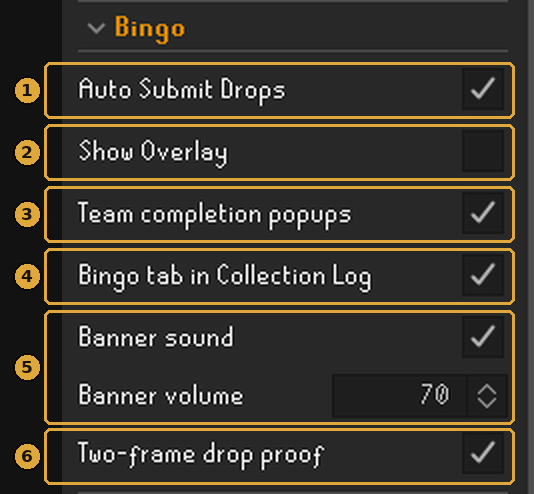
- 1Auto Submit Drops — screenshots and submits a tracked drop the moment it lands. Leave this on; it's the whole point.
- 2Show Overlay — draws a small Anvil / Team / UTC date panel in the top-left. It becomes part of the picture in your proof screenshots, which is what makes a proof hard to fake or back-date. It’s off in this screenshot — turn it on if your clan wants team and time visible on every proof.
- 3Team completion popups — a banner when anyone on your team finishes a tile. Several at once: the hardest gets the banner, the rest go to chat.
- 4Bingo tab in Collection Log — puts your board inside the in-game Collection Log, alongside your saved proofs.
- 5Banner sound + volume — plays a sound with the banner. Nothing plays until you add at least one .wav yourself, via the “Banner sounds” button in that Bingo tab.
- 6Two-frame drop proof — bakes a second frame into the screenshot a couple of seconds later, once loot has settled on the floor. Keep it on; it saves arguments.
Discord notifications
These fire whether or not a bingo is running, and they post to the clan’s channels. Which channel is set up here by the admins — you only choose what you post.
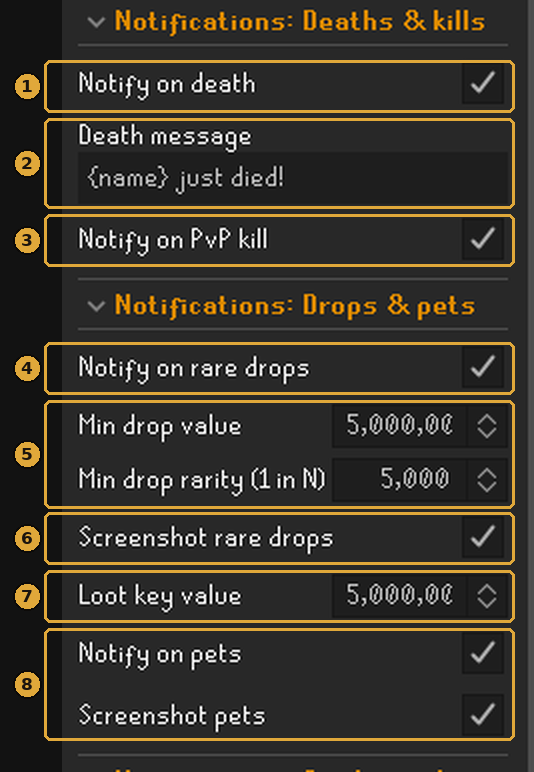
- 1Notify on death — posts to the clan deaths channel with a screenshot of the moment you died.
- 2Death message — your own line.
{name}is replaced with your RSN. - 3Notify on PvP kill — a screenshot of the tick your target hits 0 HP. Off by default; on here.
- 4Notify on rare drops — the master switch for drop posts.
- 5Min drop value / Min drop rarity — two independent routes to a post: worth at least this much (GE or high alch, whichever is higher), or rarer than 1-in-N. Set either to 0 to switch that route off.
- 6Screenshot rare drops — attach the picture, not just the text.
- 7Loot key value — a loot key posts once, as a single notification, when its whole contents clear this number.
- 8Notify on pets + Screenshot pets — pets post to the rare-drops channel.
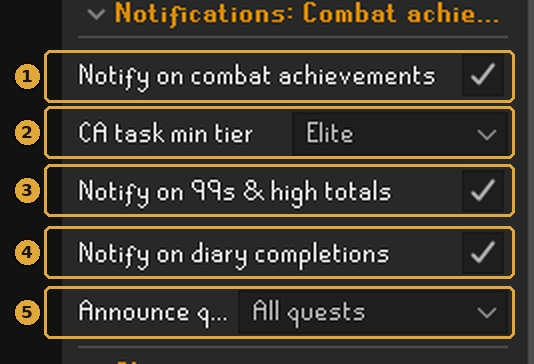
- 1Notify on combat achievements — tier clears always post when this is on.
- 2CA task min tier — how noisy individual task completions are. Elite here; the default is Master. Set it to Grandmaster for only the rarest.
- 3Notify on 99s & high totals — 99s, every 100 total levels from 1800 up, and max.
- 4Notify on diary completions — achievement-diary tiers.
- 5Announce quest completions — at or above the difficulty you pick. “All quests” here; the default is Master & up.
Clips with OBS
Press one key and the last 30 seconds get saved and dropped into the clan’s clips channel. It’s off by default and needs OBS running — but it’s the closest thing to a highlight reel your clan will get.
How it works: OBS keeps a rolling replay buffer of the last X seconds. Your hotkey tells OBS to flush that buffer to a file, and the plugin picks the file up and uploads it to a Discord webhook you paste in.
Clips upload straight from your PC to Discord. They never pass through this site, and nothing is uploaded at all if you leave the webhook field blank — clips just stay on your machine.
A. Set up OBS (once)
- You need OBS Studio 28 or newer — the WebSocket server is built in from 28 onward, no extra download.
- Make sure OBS is actually capturing the game: a Game / Window / Display Capture source that shows RuneLite. If OBS can’t see your client, your clips will be a black rectangle.
- Settings → Output → tick Enable Replay Buffer. (Simple output mode puts it on the Recording page; Advanced mode gives it its own tab.) Check your recording path has free space while you’re there.
- Tools → WebSocket Server Settings → tick Enable WebSocket server. Note the Server Port (4455 by default) and click Show Connect Info for the password.
You do not need to press “Start Replay Buffer” — the plugin starts it for you when it connects, and restarts it whenever you change the clip length.
B. Fill in the plugin
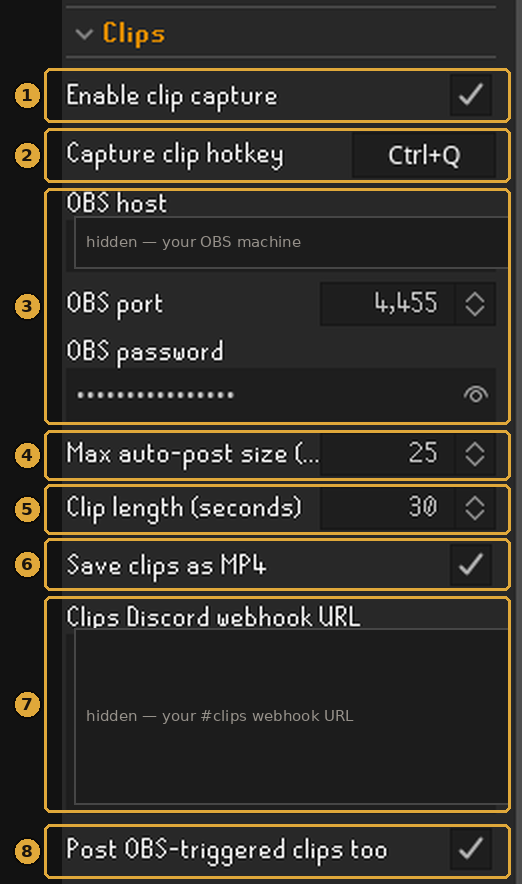
- 1Enable clip capture — the master switch. Off, the plugin never talks to OBS at all.
- 2Capture clip hotkey — set this or nothing will ever happen. Pick something you won’t hit by accident mid-raid.
- 3OBS host / port / password —
localhostwhen OBS runs on the same PC as RuneLite. If OBS is on another machine, put that machine’s local IP here — hidden in this screenshot — and let the port through its firewall. Port and password come from Show Connect Info; leave the password blank if you turned OBS authentication off. - 4Max auto-post size (MB) — anything bigger is saved locally and quietly mentioned in chat instead of being posted. Match it to what your Discord server actually accepts; the plugin ships at 25.
- 5Clip length (seconds) — how far back each clip reaches. This writes the buffer length into your OBS profile, so OBS needs that many seconds of runway before a full-length clip exists. Longer clips = bigger files; 30 is a good middle.
- 6Save clips as MP4 — MP4 previews and plays inline in Discord; MKV has to be downloaded first. Note this changes OBS’s recording format, which affects your normal recordings too. Turn it off to leave OBS alone.
- 7Clips Discord webhook URL — where clips get posted — ask an admin for the clips-channel webhook. Blank = clips stay on your PC. Hidden here, and worth hiding: anyone with this URL can post to that channel.
- 8Post OBS-triggered clips too — also handle saves triggered by OBS itself or by the “Save Replay Buffer for OBS” plugin. Leave it off if you run two RuneLite clients against one OBS, or every clip posts twice.
C. Use it
Something funny happens → press your hotkey → the chat walks you through it:
The clip covers the seconds before you pressed the key — so press it after the moment, not during. You have the length of your buffer to react.
Clip messages, decoded
Clip capture: OBS isn't connected.OBS isn’t running, the WebSocket server is off, or the host/port/password don’t match. Fix it and press again — the plugin retries the connection on its own every 30 seconds.OBS could not save the clip — is the Replay Buffer started?The buffer isn’t running. Check Enable Replay Buffer in OBS output settings, then toggle Enable clip capture off and on.Clip saved locally — paste a Clips Discord webhook URL…Working as intended, you just have no webhook set. The file is in your OBS recording folder.Clip saved locally (48MB) — too big to auto-post.Shorten the clip length, lower your OBS recording quality, or raise the max size if your server accepts bigger files.…but Discord didn’t accept the upload.Too big, rate-limited, or the upload timed out. The file is still on your PC — post it by hand if it’s worth it.When something breaks
The plugin tells you in chat when tracking has stopped — it waits about 90 seconds before complaining and repeats at most every 5 minutes.
Anvil: your Account Token was rejected — tracking is OFF.The token is wrong or was rotated. Re-copy it from Profile → RuneLite plugin, or clear the field and sign in from the plugin again.Anvil: can't reach the site — tracking is OFF.Check the Site URL for typos — it should be https://lfl.anvilosrs.com. If it’s right, the site is probably down.…you’re logged in as "<RSN>" but isn’t linked… your drops won’t count.That account isn’t linked yet. Add it from Profile → “Accounts we noticed you playing”.Anvil: reconnected — tracking is back on.Nothing. It recovered by itself.Still stuck? Send an admin a log
Type ::anvillog in game chat (or set the Export debug log hotkey in the plugin’s Support section). It writes a log file to your .runelite/anvil-debug folder, opens the folder, and copies the path to your clipboard — send that file to an admin and they can see exactly what went wrong.
Pets and duplicate Champion’s scrolls need a manual screenshot. Those get saved to .runelite/osrs-bingo-pending/ and show up as a Saved proofs row in the Collection Log’s Bingo tab.
Screenshots are from a live setup — the account token, OBS address and Discord webhook are blanked out on purpose. Yours should stay just as private.